Windows 11
In the seventh class, you studied how to systematise files and how to handle applications. Class 8 will have us realise how to handle the system better. It will involve user accounts, storage tools, updates and security features.
What is Windows 11?
Windows 11 is the new version of the Windows operating system, which has been developed by Microsoft.
It is the software which makes computers work, and you can use programs, games and other functions.
Windows 11 is the new release of Windows 10, and it comes with new features and a new appearance.
Why Do We Use Windows 11?
We use Windows 11 because:
- It assists us in operating programmes and applications on our computers.
- It facilitates easier handling of files and retrieval of valuable documents.
- Windows 11 is more user-friendly, and it has a simple and fast interface.
- It links us to the internet, where we can browse, communicate and learn.
Managing System Settings
Windows 11 gives the user the tools to control and customise the system.
There are two main places in which system settings are managed:
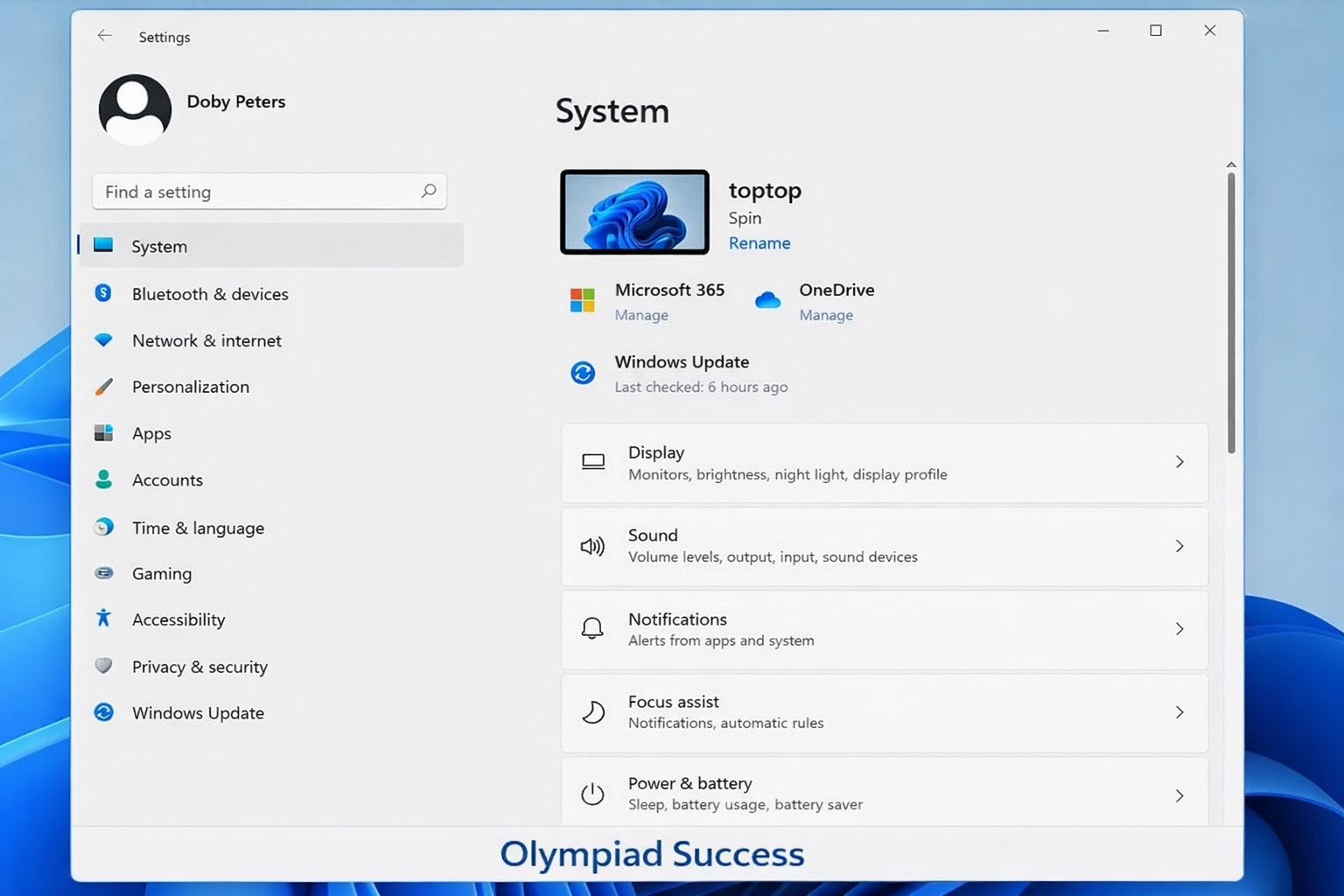
Settings
The Settings app is the new control centre of Windows 11. It allows users to manage the following:
- Display and brightness
- Sound settings
- Network and internet
- User accounts
- System updates
- Settings are easy and simple to use.
Control Panel
The Control Panel is the conventional management tool. It allows access to advanced options, including the following:
- Hardware and devices
- Programs and features
- Administrative tools
- Advanced security options
Both settings and the control panel are used to customise the system as per the requirements of the user.
Accounts and Authorisations
Windows 11 enables various users to have different accounts.
There are two main types:
Administrator
- Is in full control of the system.
- Full control over the system
- Can install software
- Can change system settings
Standard User
- Has restricted access.
- Limited access
- Unable to change major system settings
- Permission to install required
The accounts of the users assist in securing files and privacy.
Managing Storage
Storage has to be well-maintained in order to maintain the smooth running of the system.
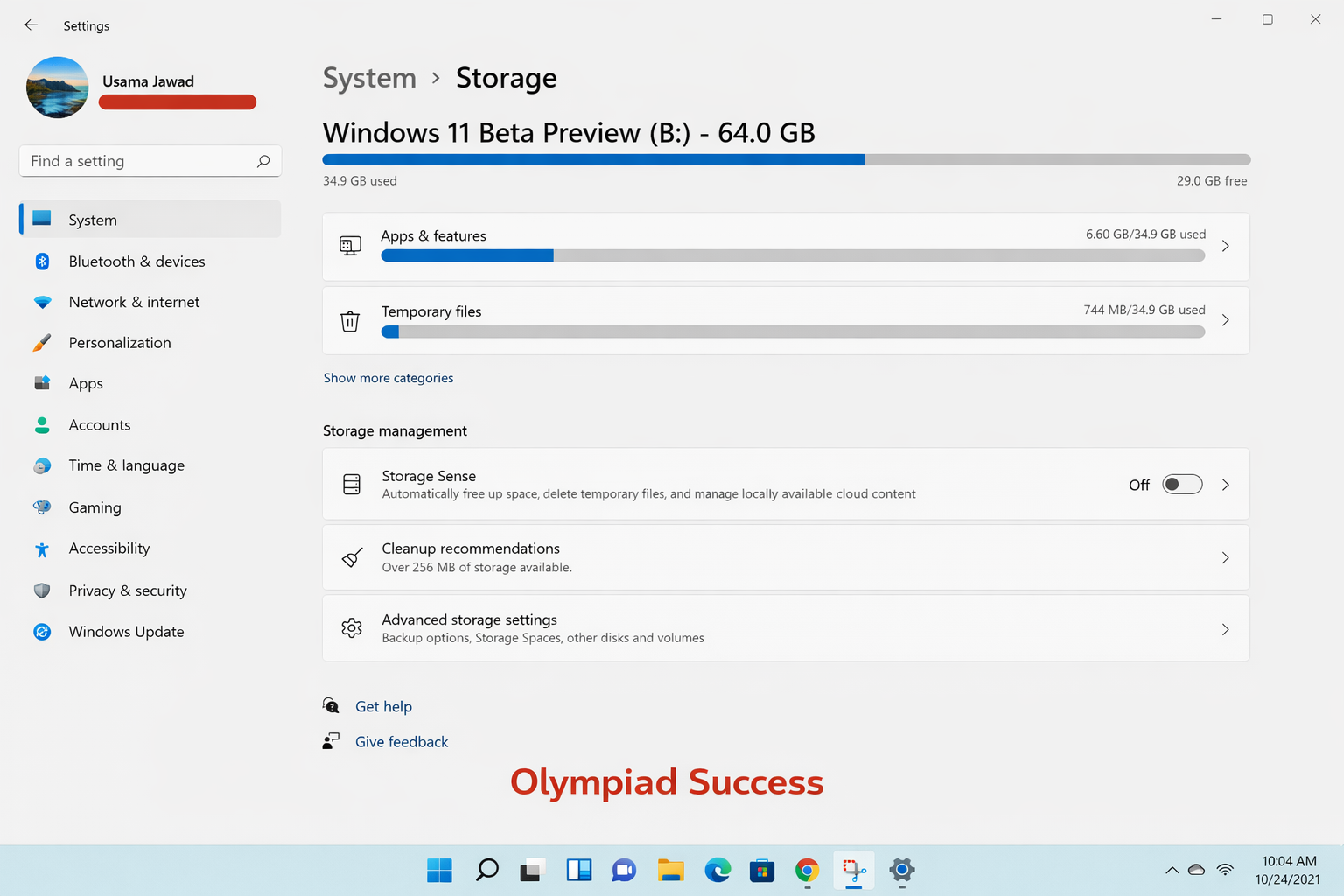
Windows 11 offers the following tools:
- Storage Settings (to check the space utilisation)
- Disk Cleanup (to delete temporary files)
- Storage Sense (cleaning feature)
Performance is enhanced by regular management of storage.
Windows Update
Windows Update ensures that the system is safe and current.
Updates:
- Fix errors
- Improve performance
- Add new features
- Strengthen security
The updates should be installed on a regular basis.
Windows Security
Windows 11 has built-in security.
These include:
- Virus and threat protection
- Firewall settings
- Device security
Security tools prevent the system from being attacked by harmful software.
OneDrive (Cloud Storage)
OneDrive enables you to store files online.
Benefits include:
- Store files online
- Access files from any device
- Automatic backup
- Easy sharing
- Cloud storage eliminates loss of data.
Accessibility Features
Windows 11 offers capabilities that would assist all users.
Examples:
- Magnifier - Enlarges content
- Narrator – Read text aloud
- On-screen keyboard – Allow typing without a keyboard
Such utilities make the computer user-friendly.
Managing Notifications
Messages and updates are notified to you.
You can:
- Turn notifications on or off
- Set priority alerts
- Reduce distractions
Focus is achieved by controlling notifications.
QUIZ FOR WINDOWS 11
1. A student installs new software, alters the system settings and creates user accounts in a computer. What sort of account is needed for these actions?
A) Guest Account
B) Standard User
C) Administrator
D) Local Viewer
Answer: C) Administrator
2. A user would like to find a way of auto-deleting temporary files and maintaining storage space without manually doing so. What Windows 11 feature can be useful in this task?
A) Disk Management
B) Storage Sense
C) Task Manager
D) Device Manager
Answer: B) Storage Sense
3. A computer gives several notifications regarding system updates and system improvements. What window feature primarily gives these updates?
A) Windows Defender
B) Windows Update
C) Control Panel
D) Task Scheduler
Answer: B) Windows Update
4. A teacher desires to test hardware, remove programs and use advanced system tools. What is the most suitable Windows 11 utility?
A) Settings App
B) Control Panel
C) Taskbar
D) Search Box
Answer: B) Control Panel
5. A student uses the school computer and is not able to install the software or make any changes to the system settings. What kind of account is the student most probably using?
A) Administrator
B) Standard User
C) Network User
D) Guest Admin
Answer: B) Standard User
6. One of the users will be subject to storing files on the internet and later accessing them with another computer. What is the feature in Windows 11 that facilitates this?
A) Disk Cleanup
B) OneDrive
C) Control Panel
D) Windows Defender
Answer: B) OneDrive
7. A blind user requires the computer to speak the text on the screen. What Windows 11 accessibility option can be used in this case?
A) Magnifier
B) Narrator
C) Speech Recognition
D) Sticky Keys
Answer: B) Narrator
8. A user does not want to be distracted by the appearance of a pop-up alert, but he/she also needs to receive critical system messages. What is the characteristic that assists in managing this?
A) Taskbar settings
B) Notification settings
C) Display settings
D) Network settings
Answer: B) Notification settings
9. A user would wish to make text and pictures on the screen bigger to make them more visible. What accessibility feature is to be employed?
A) Magnifier
B) Narrator
C) OneDrive
D) Disk Cleanup
Answer: A) Magnifier
10. What is the primary Windows 11 tool that enables protection against viruses and other harmful software?
A) Windows Security
B) File Explorer
C) Disk Cleanup
D) Taskbar
Answer: A) Windows Security