MS Excel
MS Excel is a spreadsheet application used to tabulate, compute, and analyse data. It is widely used in schools, offices, and businesses to perform calculations quickly and accurately.
Class 8 students are introduced to such advanced features as useful formulas, defined names and cell referencing.
Exploring the File Tab
The File tab helps you manage Excel worksheets.
You can:
- Create a new workbook
- Open existing files
- Save and Save As
- Print worksheets
- Share or export files
- Protect your workbook
The File tab is the one that helps you in the management and organisation of your work.
Helpful Formulas and Functions
Excel is a program that calculates through the use of formulas and functions.
SUM
Adds numbers.
Example:
=SUM(A1:A5)
MIN
Finds the smallest value.
Example:
=MIN(A1:A5)
MAX
Finds the largest value.
Example:
=MAX(A1:A5)
AVERAGE
Calculates the average.
Example:
=AVERAGE(A1:A5)
COUNT
Counts numeric values.
Example:
=COUNT(A1:A5)
IF Function
The IF function compares a condition and provides an outcome.
Example:
=IF(A1>40,"Pass","Fail")
It is useful when it comes to result sheets and grading.
EVEN and ODD
- EVEN rounds off a number to the nearest even value.
- ODD would round off to the nearest odd number.
LCM and GCD
- LCM is the Least Common Multiple.
- GCD is the largest shared divider.
Example:
=LCM(12,18)
=GCD(12,18)
POWER
Calculate the power.
Example:
=POWER(2,3) gives 8.
PRODUCT
Multiplies numbers.
Example:
=PRODUCT(A1:A5)
ROUND
Round off a number to a given number of digits.
Example:
=ROUND(A1,2)
SQRT
Finding the square root of a figure.
Example:
=SQRT(16) gives 4.
UPPER, LOWER and REPLACE
These functions deal with text.
- CAP converts capital letters to text.
- LOWER changes the text into small letters.
- REPLACE changes some part of a text.
Example:
=UPPER("excel")
=LOWER("EXCEL")
Cell Referencing
Cell referencing refers to the use of cell addresses in a formula.
There are three types:
1. Relative Reference
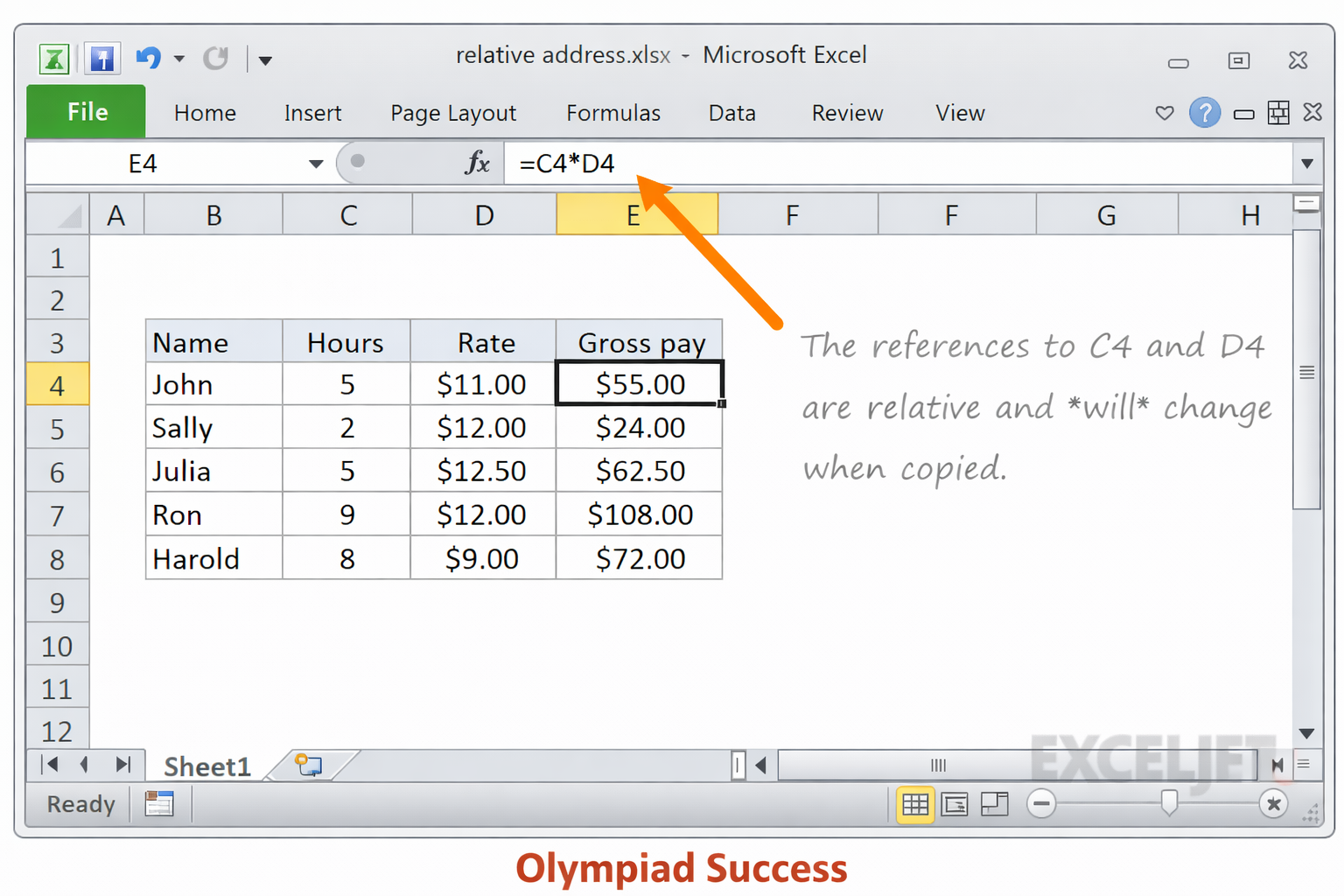
Changes when copied.
Example: A1
2. Absolute Reference
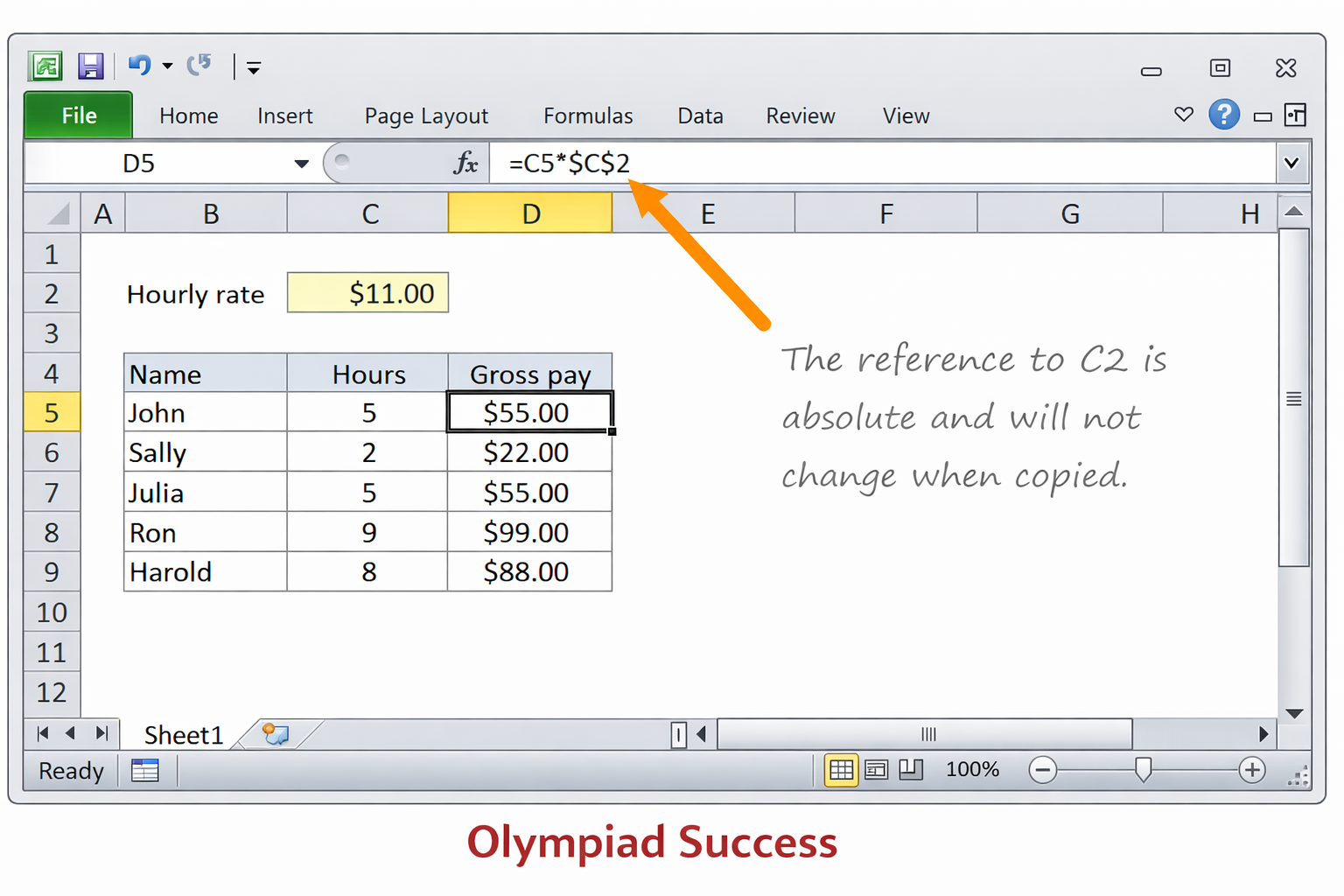
Does not change when copied.
Example: $A$1
3. Mixed Reference
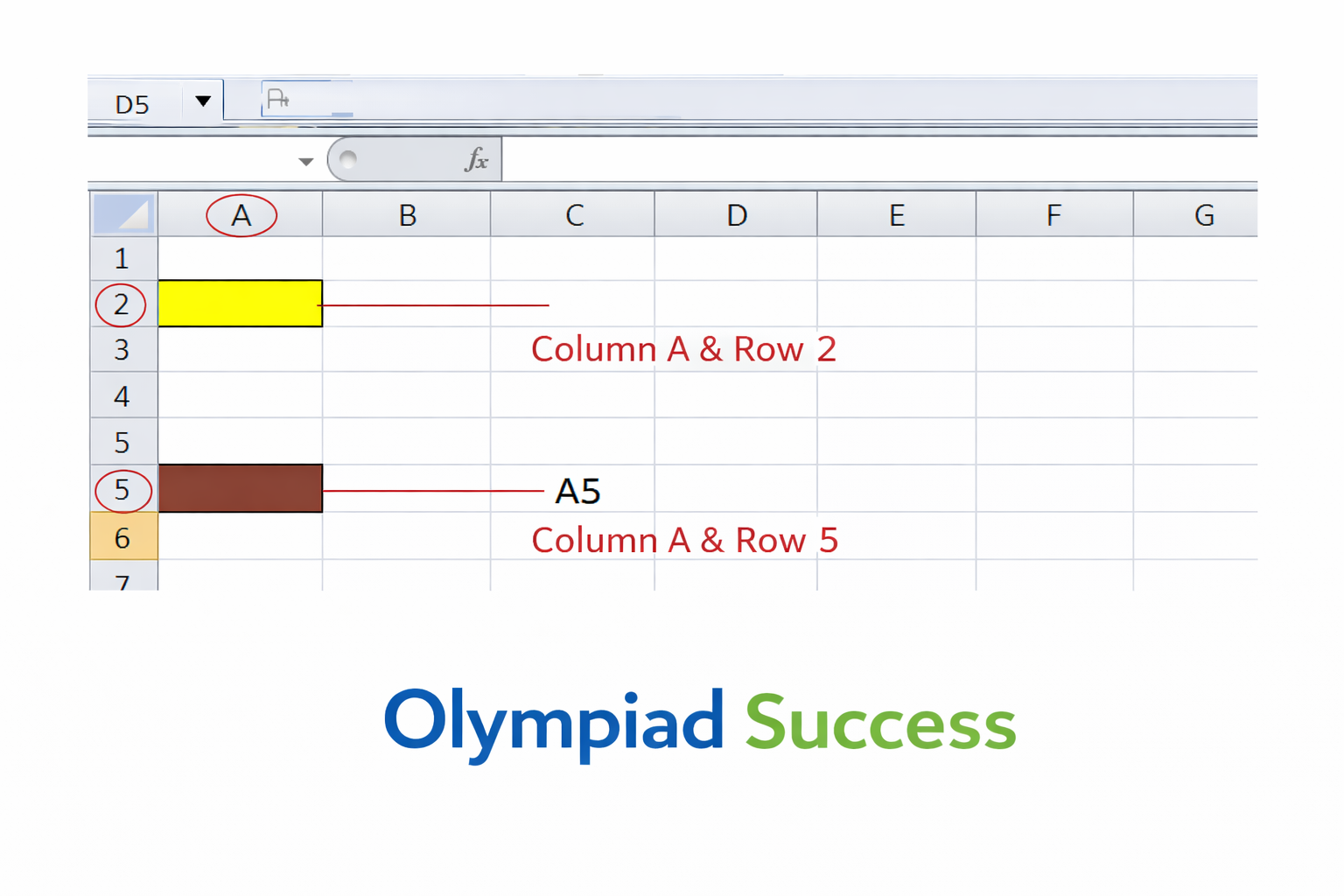
Partially fixed.
Example: $A1 or A$1
Calculations can be flexible in cell referencing.
Using Defined Names Group
The Formula tab contains the Defined Names group.
It allows you to:
- Give a name to a cell or range.
- Use that name in formulae.
Example:
Instead of writing =SUM(A1:A5)
You may call the range by the name of “Marks" and write.
=SUM(Marks)
This simplifies the understanding of formulas.
QUIZ FOR MS EXCEL
1. What Excel function is used to determine the average numbers in a cell range?
A) SUM
B) COUNT
C) AVERAGE
D) MAX
Answer: C) AVERAGE
2. What is the largest value within a range of cells using Excel?
A) MAX
B) MIN
C) PRODUCT
D) COUNT
Answer: A) MAX
3. A teacher uses the formula:
=IF(A1>40,"Pass","Fail")
What does Excel show when A1 is equal to 35?
A) Pass
B) Fail
C) Error
D) 35
Answer: B) Fail
4. A student pastes the formula =A1+B1 of the first row to the second one. The formula will automatically be A2+B2. What kind of cell reference is applicable?
A) Absolute Reference
B) Relative Reference
C) Mixed Reference
D) Fixed Reference
Answer: B) Relative Reference
5. And what cell reference is the same when cloned into a different cell?
A) A1
B) A$1
C) $A1
D) $A$1
Answer: D) $A$1
6. Numbers have been written in a spreadsheet in cells A1 to A5. Which is the formula that will multiply all the numbers in this range?
A) =SUM(A1:A5)
B) =PRODUCT(A1:A5)
C) =COUNT(A1:A5)
D) =AVERAGE(A1:A5)
Answer: B) =PRODUCT(A1:A5)
7. One of the students desires to count only numeric values within the range A1:A10. What is the rule that should be applied?
A) SUM
B) COUNT
C) MAX
D) MIN
Answer: B) COUNT
8. The number 17 is written in a cell, and a formula =EVEN(A1) is used. What will be the result?
A) 16
B) 17
C) 18
D) Error
Answer: C) 18
9. The A1:A5 range is named 'Marks' by a teacher, and the formula used is =SUM(Marks). Which feature allows this?
A) Cell Formatting
B) Defined Names
C) Conditional Formatting
D) Data Validation
Answer: B) Defined Names
10. A spreadsheet uses the formula '=Round(A1, 2)' with A1 having a value of 5.6789. What will be the result?
A) 5.67
B) 5.68
C) 5.678
D) 6
Answer: B) 5.68