Windows 11
Windows 11 is the most recent version of Microsoft Windows. It is an operating system that manages the functioning of a computer. Whenever we switch on a computer, Windows is the first thing that loads, and we are able to open programs, manage files and use different applications.
In Class 7, students should not only be aware of how to use Windows 11 but also know how the major components of the system operate with each other.
What is an operating system?
An Operating System (OS) is system software that
- Controls the hardware
- Manages memory
- Runs applications
- Handles input and output devices
Without an operating system, a computer cannot work.
Windows 11 is designed to be easy to use, fast and secure.
Types of Operating Systems:
Batch Operating System
This kind of OS is able to execute a set of tasks simultaneously, but without the intervention of the user. It is a teacher marking without stopping to mark the assignments.
Time-sharing operating system
With a time-sharing OS, the system can be used by several users simultaneously. The computer allocates time to various users. It is similar to a group of students sharing a single computer, but they get a chance to work on their assignments.
Mobile Operating System
These are the operating systems that are used in smartphones and tablet computers. Examples are Android and iOS. They should be efficient to use when in the mobile industry and are provided with communication, educational, and entertainment applications.
Understanding the Windows 11 Interface
The interface refers to the way that the screen appears and how we interact with it.
When we start the computer, the first thing that we see on the screen is called the 'desktop'.
The Desktop
The desktop is the main working area of Windows.
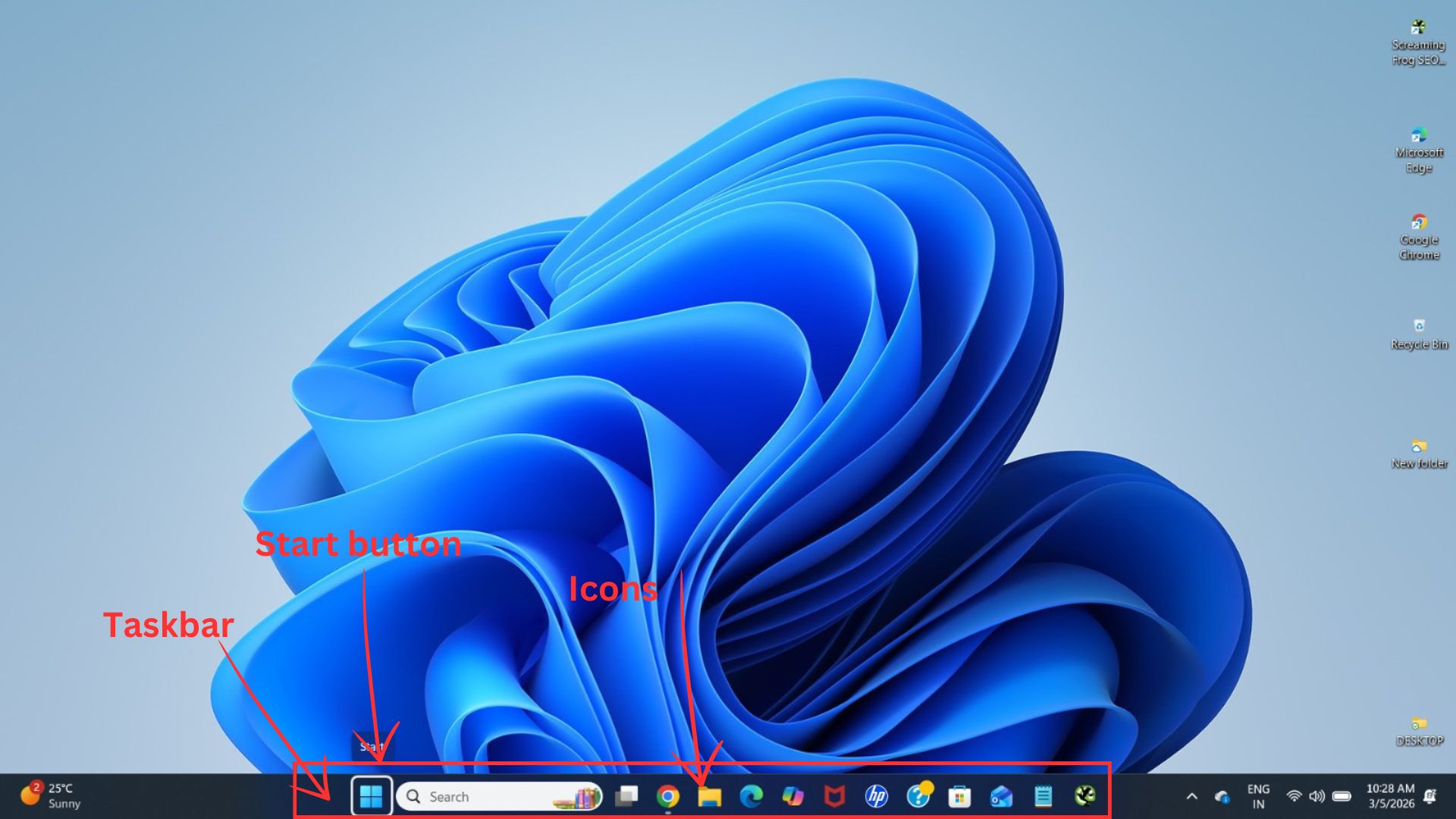
It includes:
- Icons
- Taskbar
- Wallpaper
Icons
Icons are little pictures representing:
- Files
- Folders
- Applications
For instance, the Recycle Bin icon is used to store deleted files.
When you double-click on an icon, it opens.
The Taskbar
The taskbar is found at the bottom of the screen. The icons are placed in the centre in Windows 11.
The taskbar includes the following:
- Start button
- Search icon
- Open application icons
- System tray (Wi-Fi, sound, battery, date and time).
The taskbar enables users to switch from one program to another in a short span of time.
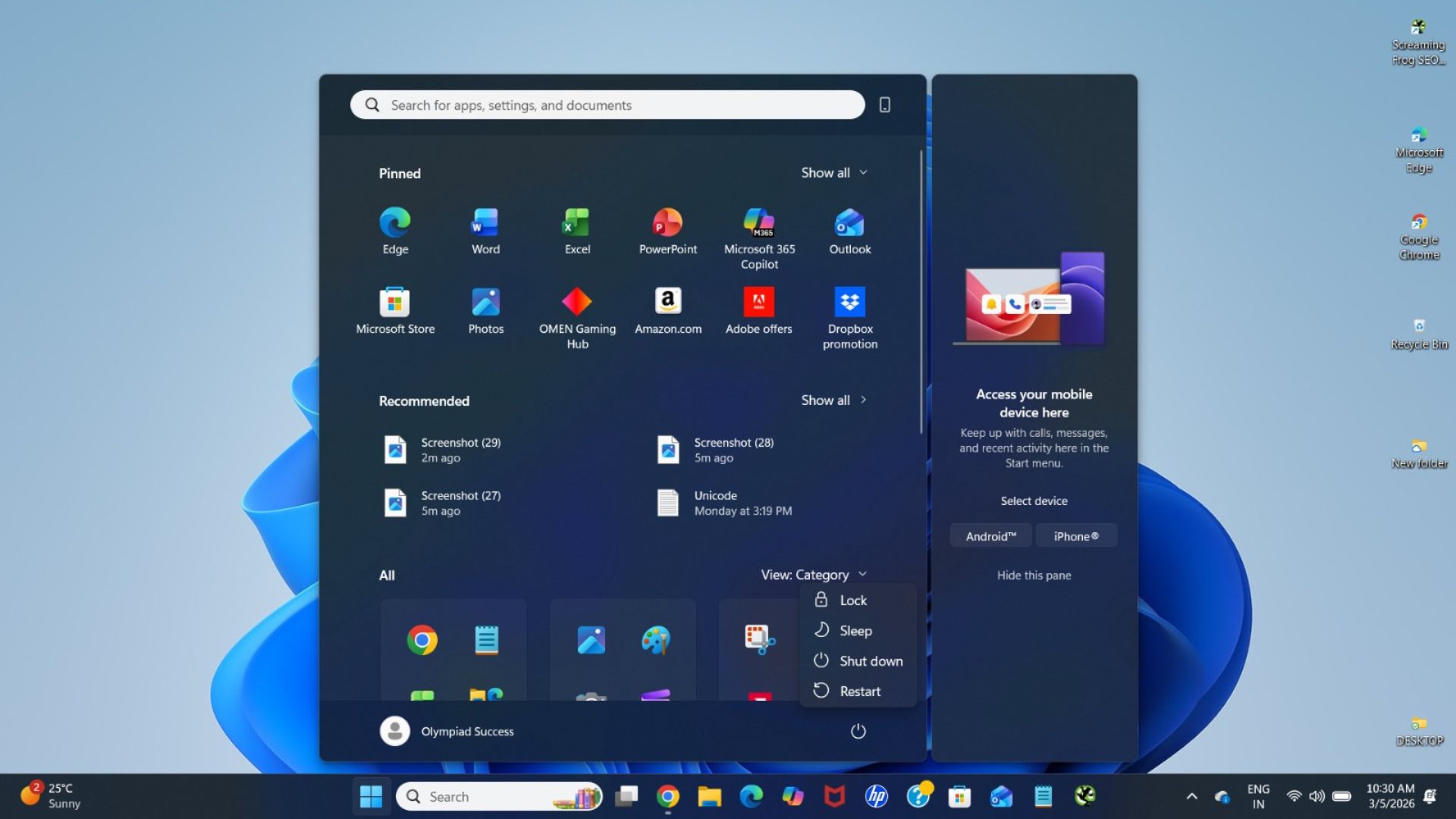
The Start Menu
When you click on the start button, the start menu opens.
It contains:
- Pinned applications
- All apps list
- Recommended files
- Power Options (Shut down, Restart, Sleep)
The start menu is used to provide a simple way for users to find and launch programs.
Working with Windows
Understanding the management of programme windows is very important.
Every application is opened within a window.
Each window has:
- Minimise button
- Maximise/Restore button
- Close button
Minimise
Sends the window to the taskbar but does not close it.
Maximise
Makes the window fill the whole screen.
Restore
Restores the window to its former size.
Close
Closes the application.
Students should practise switching between open programs using the taskbar.
File Explorer – Working with Files and Folders
File Explorer is used to help manage and organise digital files.
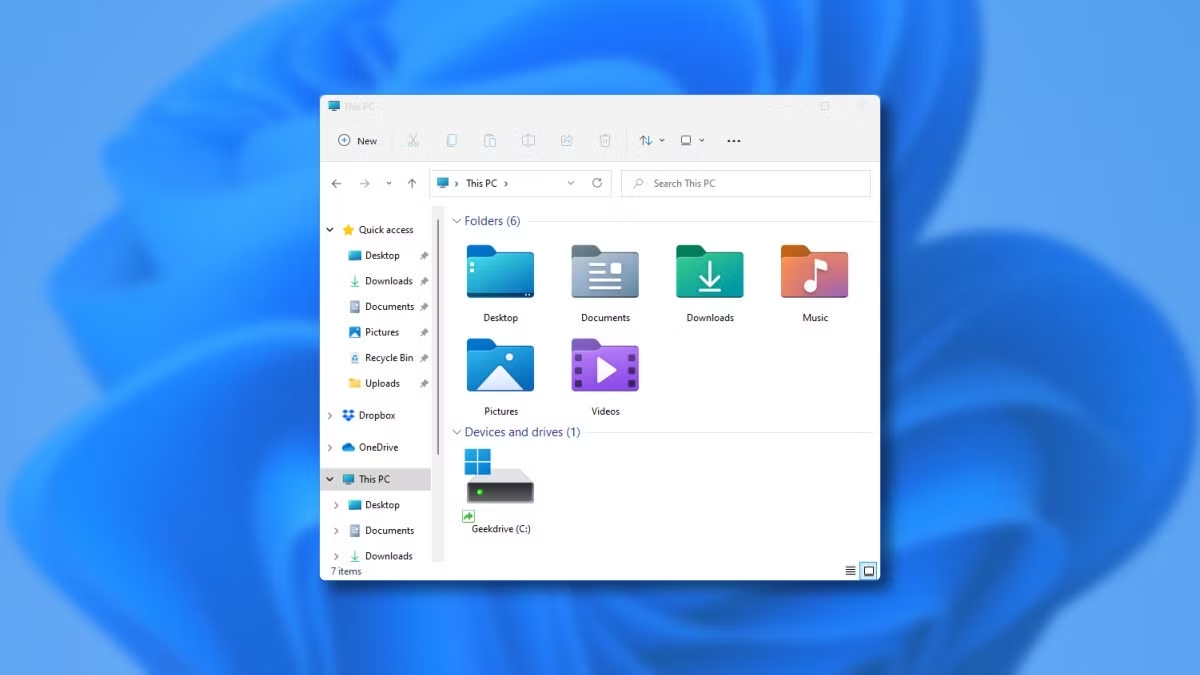
You can:
- Create new folders
- Rename files
- Delete unwanted files
- Copy and move files
- Open saved documents
It is important to have proper file organisation to manage school projects.
For example:
Creating separate folders for computer science and English is useful in keeping work organised.
Snap Layouts - Organising Your Screen
- Snap Layouts is a special feature of Windows 11.
- It gives you the option to put several windows neatly on the screen.
For example:
You can have your textbook PDF on one side and MS Word on the other side while doing homework.
This helps to improve multitasking and productivity.
Basic Settings in Windows 11
Students should also be familiar with how to change simple settings.
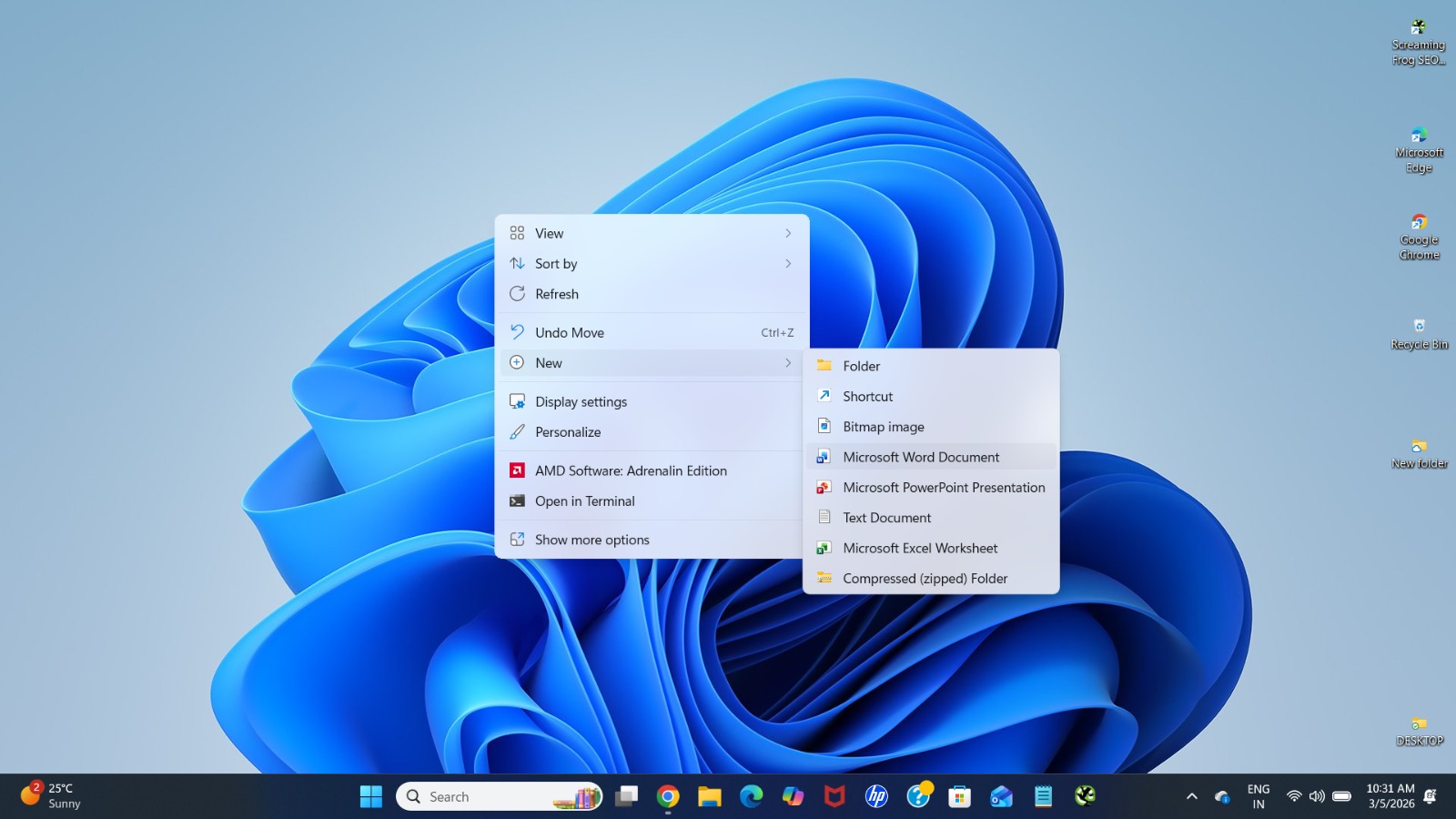
Changing Wallpaper
Right-click on the desktop > select 'Personalise'. > Select background.
Connecting to Wi-Fi
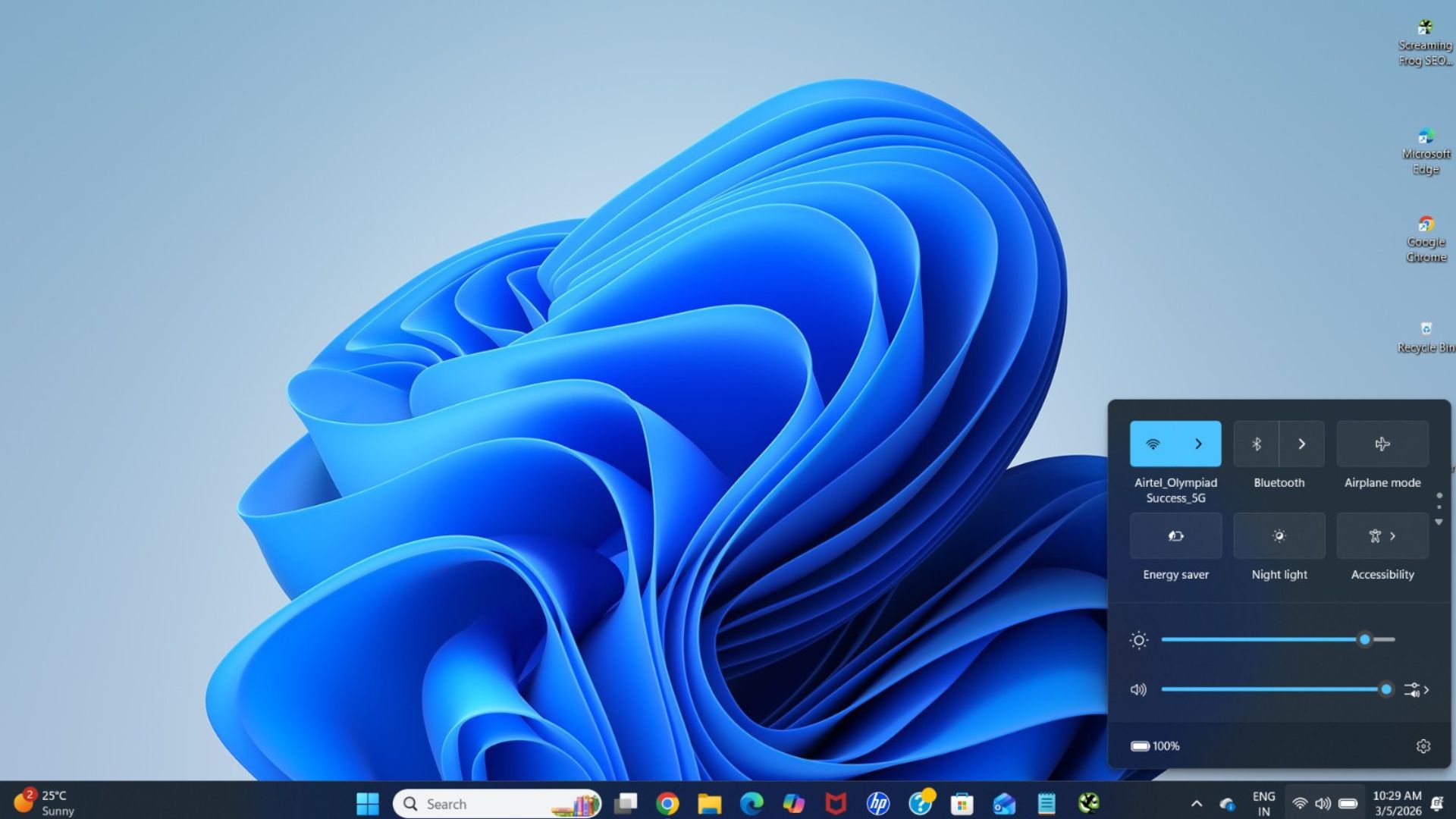
Click on the Wi-Fi icon on the Taskbar > Choose network > Enter password.
Shutting Down the Computer
Click Start → Power → Shut down.
Shutting down properly represents system protection.
Importance of Learning Windows 11
Learning Windows 11 is a challenge that helps students:
- Develop digital confidence
- Organise their work effectively
- Improve in the areas of computer handling
- Prepare for advanced topics on computers
Since Windows is commonly used in schools, offices and businesses, an understanding of Windows is a necessary digital skill.
QUIZ FOR WINDOWS 11
1. One of the students opens a browser, a PDF text and an MS Word document. What feature of Windows 11 is needed to have them positioned on the screen so that they can be used concurrently?
A) Taskbar
B) Snap Layouts
C) Start Menu
D) File Explorer
Answer: B) Snap Layouts
2. The entire screen has been covered by a program window. The student taps on a button to reduce it to its old small size. Which button was clicked?
A) Minimise
B) Close
C) Restore
D) Start
Answer: C) Restore
3. One powerful computer is located in a computer laboratory where several students are using it. Every learner is allowed a brief time to execute his programme. Which of the operating systems permits this?
A) Batch Operating System
B) Time-Sharing Operating System.
C) Mobile Operating System
D) Embedded Operating System
Answer: A) Time-Sharing Operating System.
4. One of the students unintentionally closes a critical program window. What was the button that was clicked on the window?
A) Close
B) Restore
C) Minimise
D) Search
Answer: A) Close
5. A student right-clicks on the desktop when working on a project, and instead of just changing the background of the screen, he/she clicks on the 'Personalise' option. What is being modified?
A) Taskbar
B) Wallpaper
C) File Explorer
D) Start Menu
Answer: B) Wallpaper
6. A client would like to have a quick look at the status of the Wi-Fi connection, battery power, and system time on a Windows 11 computer. The location of these icons is normally different.
A) Desktop icons
B) System tray on the Taskbar
C) File Explorer
D) Start Menu
Answer: B) System tray on the Taskbar.
7. A learner clicks twice on a small picture on the desktop to access a program. What is the name of this little picture?
A) Widget
B) Icon
C) Folder
D) Shortcut key
Answer: B) Icon
8. A computer is turned on, and it promptly starts loading software that enables the users to access programs and also manage files. What software is the cause of this?
A) File Explorer
B) Operating System
C) Application Software
D) Device Driver
Answer: B) Operating System
9. A student prefers to arrange school files in folders that have the names Science, Maths, and English. What Windows tool is utilised to perform this task?
A) Snap Layouts
B) File Explorer
C) Taskbar
D) Start Menu
Answer: B) File Explorer
10. Where are the application icons in Windows 11, and where do they typically appear to enable a user to open programs immediately on the main working screen?
A) Desktop
B) BIOS
C) Control Panel
D) Network Panel
Answer: A) Desktop